
Macros/Scripting
For automated design creation, addding new features, adjusting the user interface, parametric cells, calling external tools or as callback for different events like changing of device parameter and completion of an external tool macros or scripting is used. The LayoutEditor offers a wide range of creating such macros or scripts. It can be recorded from the user interface or programmed with internal or external tools in the common programming languages like C++ . Fundamental parts of the macro programming are:
Contents
Macro Recording
The simplest way to use macros is macro recording. Like many office programs the LayoutEditor can record the operations you have done with the graphical user interface. The operation are stored in a C/C++ style and can be edited with any text editor. The recording can be started via StartMacroRecording and stopped via StopRecordedMacro. After stopping the recording a TextEditor will be opened with the recorded macro. Stored macros can be executed via the ExecuteMacro function. Alternative you can store the macro file in a specially named folder. All macros in that folder and its sub folders will be added into the menu of the LayoutEditor.
C++ Macros
C++ macros are text-files and can be edited by with the EditMacro feature or any other text editor of your choice. Macros can stored everywhere and can be executed by the ExecuteMacro feature. Macros stored somewhere below the "macros"-directory (set up via the SetupDialog or by default in the layout installation-directory-tree) are inserted in the menu tree. During program launch these directory-tree is scanned and added to the correspondent place in the menu. With a correct naming of the sub-folder you define where in the menu the macros is displayed and to which window (layout, schematic, text editor) it appears.
Own macros can be created in any text editor. However it is most comfortable to use the build-in TextEditor as it contain an execute button for a simple execution of the macro. As the name already says the macros are programmed in C++ or more correct in an interpreter language very similar to C++ as not all parts of the C++ standard are supported. Here you will find an overview of the supported code. The Application Programming Interface (API) with all its supported classes is described here. Macro-examples are supplied within this documentation and are shipped with any package of the LayoutEditor.
Structure of Macros
All macros are in a C++ code. They had to start as follow:
The line 2 (#codec...) is optional and only required, if you use non AscII characters. Line 5 is also optional and will set the short cut key to trigger the macro. It will be effective only, if the macro is added to the menu. The short cut must not be used by a build in features (or removed by a auto start macro). Macro short cuts were introduced with version 20130429.
The main-function in the macro is executed. If a exitcode unequal 0 is returned, a warning is display. All called function had to be defined before the main function.
As standard types you can use int, double, bool, void. Additional there are further type like string, stringList, point, pointArray, etc. The usage of pointers is possible. Pointer on pointer are not allowed. while, do ... while, for and if structures can be used. Enum and struc structures are not allowed and will case a termination. Own functions can be created, own classed are not possible. Compiler commands unless '#include' are ignored. Comments are possible. A more details description of the supported C/C++ langunage you will find here.
Most of the drawing relevant classes can be accessed via the class layout. The layer information is accessed via the class layer, the general setup via the class setup and the schematic window via the class schematic.
List of all layout specific classes
Example Macros
LayoutScript for Python and Ruby
C++ Macros are the native build-in scripting language. It can used in all areas like adding additional feature to the menu, parametric cells and callbacks. If you just need a scripting language for a automatic layout creation, you can alternatively use LayoutScript. That is a scripting extension for the common scripting languages Python and Ruby and has an identical structure to access the design as C++-Macros. LayoutScript is included in most LayoutEditor packages. Further details can be found here.
Data Structure
Structure Overview
The data stucture in the LayoutEditor is keep simple. A short overview is given here. More detailed information can be found for each class. The scripting is object orientated using a couple of classes and extensive use of pointers. |
|

Layout Window Structure
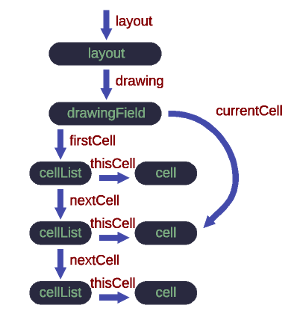
In any variant of scripting you will get a pointer with the name 'layout' on the class layout. The class layout is the main window in the LayoutEditor. With methods in this class you can adjust the graphical user interface or call common dialog e.g for requesting a new file name. It also contains a pointer with the name 'drawing' to the class drawingField. This class stores the design data and gives a high level access to manipulate the data. Also methods for loading and saveing are avaiable. The class drawingField has a pointer 'currentCell' to the current displayed cell and a pointer 'firstCell' to a list of all cells in the design. |
|
Cell Data Structure
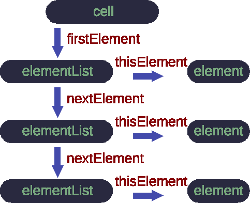
The class cell stores data belonging to a single cell likes the cell name. It has a plenty of methods for a mid level modification of the cell elements e.g. selecting elements in a defined region or moving all selected shapes. The class cell includes a list of all elements in the cell. Each single element of the design which can be one of the four basic shapes (path, box, polygon or text) or a reference (cell reference or cell reference array) is store in the class element. Via method of the class element a low level access to any data is possible e.g. selecting that element or setting the vertexes. |
|
See also