
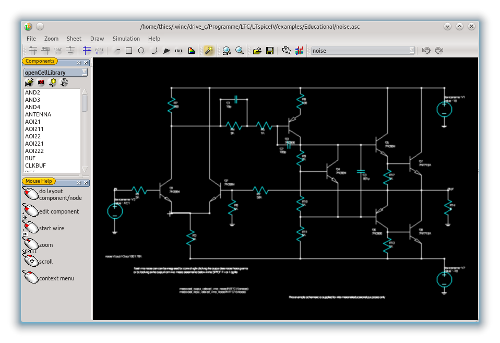
User Interface of the SchematicEditor
The composition of the SchematicEditor is very similar to the user interface of the LayoutEditor. So the user interface of the SchematicEditor offers a outstanding usability as well as a high productivity. This is achieved by an extensive use of shortcuts and mouse buttons/keys combination together with clear visibility of this combinations. The most important handling functions like zooming and scrolling are integrated in each feature and need not to be called separately. Context menus are available for most parts of the user interface by a right mouse click. The three button wheel mouse is recommended for a effective use, but it is also possible to use any feature with a touch pad or one button mouse.
The user interface of the SchematicEditor is highly adjustable. The default appearance (shown on the right) only includes most important parts. Further tool bars can be added on demand via the main menu or via a right click in the empty area of the menu bar/tool bar.
The parts of the user interface are described next. It will start with the most important part of the user interface, the main sheet area:
Sheet Area
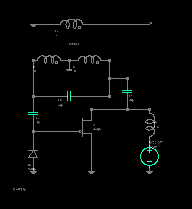 The schematic or symbol is displayed here. The mouse function depends on the activated mode. But three basic feature are always active:
 The main menu is opened by a right click in the drawing.
 Hold the right mouse-button to scroll.
 Use the mouse-wheel to zoom in/out. A fine zoom is achieved, if the mouse wheel is used together with the Shift key, and a very fine zoom with the Control key.
Components Library
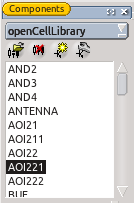 All opened component libraries are displayed in this subwindow. Via the button in the top you can choose one library and all relating components (= devices) will be shown in the list below. The tool buttons located between the library button and the component list are used to manage the libraries as well as its components. These feature are also accessable via the context menu of the components list. Further functions of the component list are:
 left click choose a component to be place in a schematic.
 or
or  shift left click to show components infos.
 shift+ctrl left click to edit component properties.
right click to show a context menu. Via the context menu you can do all relevant library modifications: 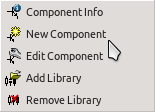
Mouse Help
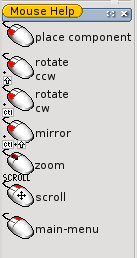
 The mouse help sub window shows the occupancy of all mouse buttons. The window is display by default in the lower left of the user interface. If the sub window is closed, you can reopen it by a right click in an empty part of the tool bar or menu bar and activate Mouse Help in the list of available windows/tool bars..
Following mouse buttons modifier combinations are used:
button: |
no |
left |
middle |
right |
|
key(s): |
|
|
|
|
|
shift |
|
|
|
|
|
control |
|
|
|
|
|
alt |
|
|
|
|
|
shift+control |
|
|
|
|
|
move mouse |
|
|
|
|
|
move mouse+shift |
|
|
|
|
|
move mouse+control |
|
|
|
|
|
move+shift+control |
|
|
|
|
|
hold mouse button |
|
|
|
|


Tool Buttons
 Most functions are available direct via a tool button. Help on the individual buttons is accessible through the "What's This" function (Shift+F1).The visibility of the different toolbars can adjusted via a right click on a free place in the dockarea. After program start the last setup is recovered.
Right mouse click to adjust toolbar setup.
Shortcuts
Some schematic feature can also be accessed via shortcuts. A list of all shortkeys can be found here. With the "CapsLock" key you can display all available shortcuts on the associated tool buttons.
Versions/Installation
The SchematicEditor is part of the any version of the LayoutEditor and it is installed with it. To open the SchematicEditor press the  button within the LayoutEditor (in the toolbar or in the utilities menu). Or start the LayoutEditor with the option --schematic to start with the schematic window. Also a direct open link to the SchematicEditor may be installed with the LayoutEditor. The SchematicEditor is free to use without any limitation. It is available with any LayoutEditor version.
Schematic Features
Please find here an overview on the different feature in the SchematicEditor: