
Raster Graphics
A raster graphic (or pixel graphic) is a data structure representing a generally rectangular grid of pixels, or points of color, viewable via a monitor, paper, or other display medium. Raster images are stored in image files with varying formats (like PNG (Portable Network Graphics), GIF (Graphics Interchange Format), JPEG (Joint Photographic Experts Group), among others). A bitmap corresponds bit-for-bit with an image displayed on a screen, generally in the same format used for storage in the display's video memory or, perhaps, as a device-independent bitmap. A bitmap graphic is technically characterized by the height and width of the image in pixels and by the number of bits per pixel (a color depth, which determines the number of colors it can represent). The word "raster" has its origins in the Latin word rastrum (a rake), which is derived from radere (to scrape), and recalls metaphorically the systematic, swept horizontal sampling of a grid-pattern populated by individual pixel-spaces with a view to representing an overall image.
Raster Graphics in the LayoutEditor
Raster graphics can be used in two ways within the LayoutEditor. A raster graphic can be imported as a regular design or it can be used as an overlay background image. Such an background image can be vectorized as well.
Raster Graphic as Design
Raster graphics that are loaded into a vector graphic program like LayoutEditor won't normally match. But sometimes such an operation can be useful. For example, when adding a logo—only available as a bitmap file—to a given design. To do this, LayoutEditor converts each pixel into a box. There are two ways of importing an image (see list below). Most of the common raster graphic formats are supported by LayoutEditor. Specific formats may only be available on certain platforms. Resolution (size per pixel) is assignable. By default, the user units are used to define resolution. Exported files with more than 530MPixel are split into multiple files. Exports to raster graphics will save visible layers of the current cell. To export part of a cell, please use the screenshot or print function.
Import Method: Map Colors to Layers
The LayoutEditor converts every pixel to a box on that layer whose color is the closest to the original pixel color. This may lead to unsatisfactory results because of limits upon available colors. The SetupDialog permits users to activate an option that optimizes existing layer colors which can result in a better color import.
Import Method: Grey Scale with Dithering
This method is used to import images in grey scale. A box is added for each pixel and the edge-size is adjusted to the grey value of the image pixel. The Floyd-Steinberg method is used for dithering. The minimal allowed box-size for a pixel can be set up along with the number of allowed sizes for pixel shapes. Also, a positive/negative context can be set up. Users can choose whether a full-size pixel box represents a white or black image pixel. (introduced with version 20130728)
Raster Graphic as Background
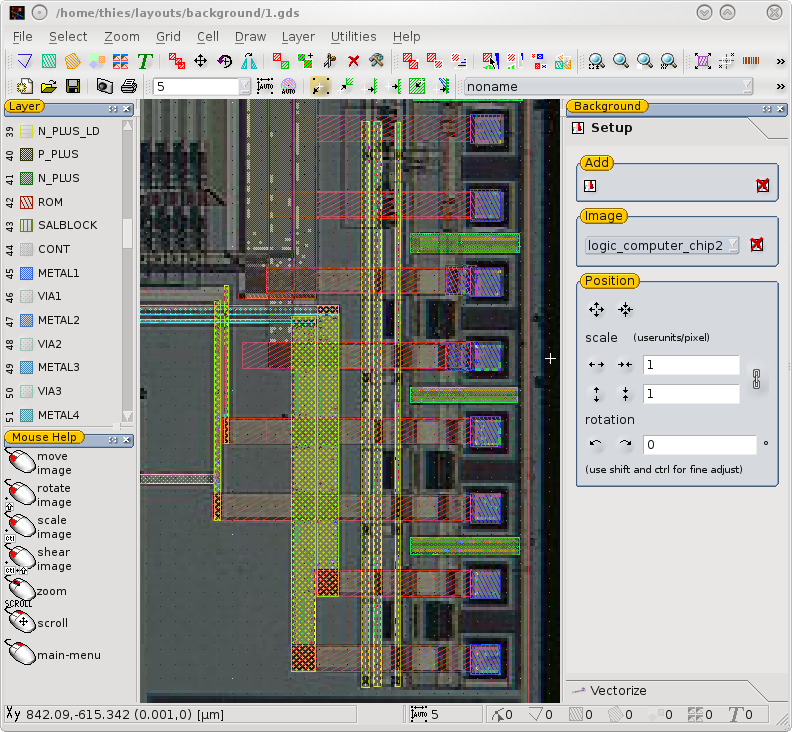
Use the SetBackgroundImagefeature to add a raster graphic image as a background. The loaded graphic can be aligned and scaled afterwards. It is possible to load multiple graphics into one design. The image will be used as a background for any displayed cell. Merge a loaded background image into the design using the VectorizeImages feature.
Example
See also
CategoryFileFormat CategoryFileFormatLayout CategoryFileFormatOther